Greedy Algorithms 2: Fractional Knapsack Problem
Procedure
Step 1: User Input Configuration
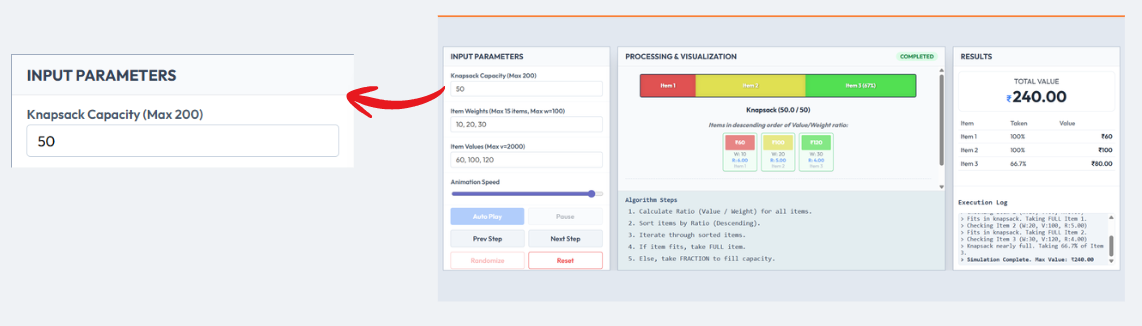
1.1 Enter the Knapsack Capacity
- Enter the Knapsack Capacity (
M) in the corresponding input field. - This represents the maximum weight the knapsack can hold.
- Input Constraint: Knapsack Capacity should be ≤ 200.
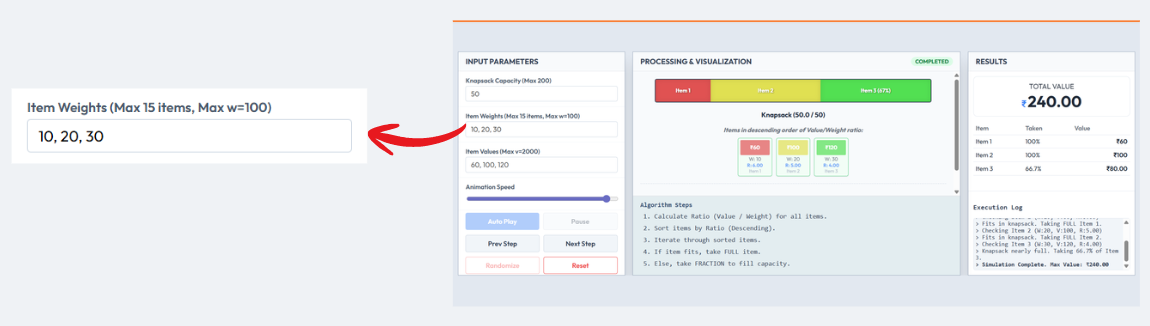
1.2 Enter Item Weights
- Enter the Item Weights as a comma-separated list of positive numbers.
- Input Constraint: Maximum 15 items are allowed and each item’s weight should be ≤ 100.
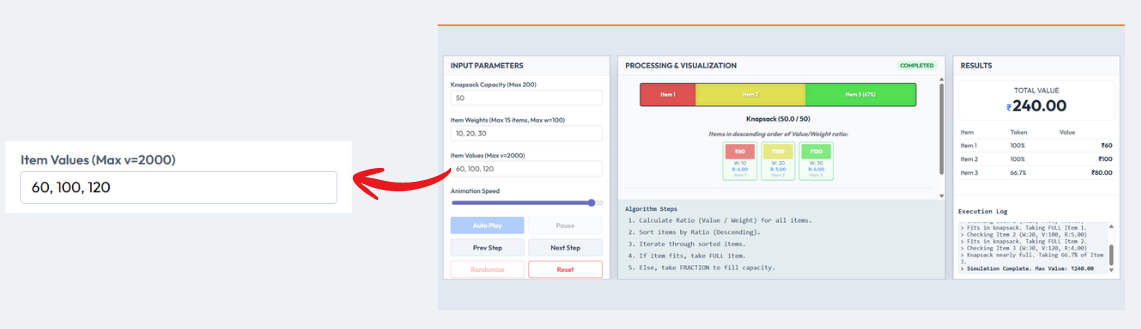
1.3 Enter Item Values
- Enter the Item Values as a comma-separated list corresponding to each item’s weight.
- Input Constraint: Each item’s value should be ≤ 2000.
1.4 Input Validation
Ensure that:
- The number of weights and values are equal.
- Ensure that all the inputs are positive numbers and within the specified constraint ranges.
(Optional)
- Click the Randomize button to automatically generate sample weights and values.
Step 2: Initialization of the Fractional Knapsack Algorithm
2.1 Start the Simulation
- Click the Auto Play or Next Step button to initialize the simulation.
2.2 Ratio Computation
- The algorithm computes the Value-to-Weight ratio (
V/W) for each item.
2.3 Reset Visualization
- All visualization panels, result tables, knapsack fill indicator, and execution logs are reset to their initial states.
2.4 Knapsack Initialization
- The knapsack is initialized with zero filled weight and zero total value.

2.5 Sorting Preparation
- The algorithm prepares to process items in descending order of their value-to-weight ratio.
Step 3: Selection of Execution Mode
Choose one of the following execution modes:
(a) Manual Mode
- Click the Next Step button to execute the algorithm step-by-step.
For each step:
- The next item with the highest value-to-weight ratio is selected.
- The algorithm checks whether the item can be fully accommodated in the knapsack.
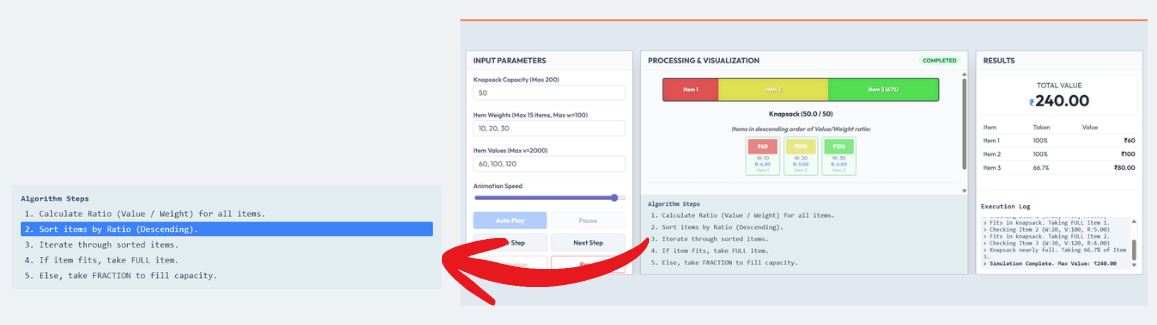
- The active algorithm step is highlighted in the Algorithm Steps panel.
If the item fits completely:
- The full item is added to the knapsack.
- The knapsack fill level increases accordingly.
If the item does not fit completely:
- A fraction of the item is added to exactly fill the remaining capacity.
Additional control:
- Click the Previous Step button to revisit earlier steps without affecting the final result.
(b) Automatic Mode
- Click the Auto Play button to allow the algorithm to execute automatically.

- Items are processed sequentially based on decreasing value-to-weight ratio.
- Knapsack filling is animated smoothly to visually represent full or fractional inclusion.
- Execution logs update dynamically to describe each decision taken by the algorithm.
- The simulation pauses automatically after the knapsack reaches full capacity.
Step 4: Visualization of Knapsack Filling
- Observe the Items Panel, where items are displayed in sorted order of value-to-weight ratio.

- Track the gradual filling of the Knapsack Panel, represented by a coloured progress fill.
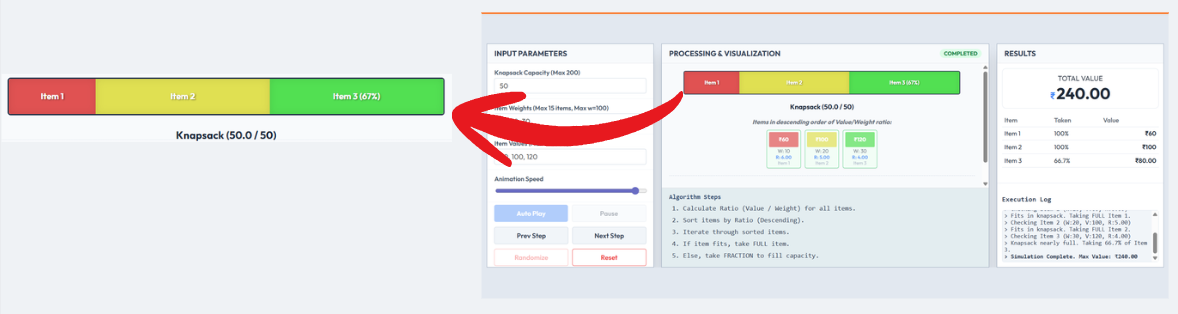
Notice:
- Full items increase the fill proportionally to their weight.
- Fractional items partially fill the remaining space.
- The current weight and maximum capacity are updated in real time.
- The result table records the fraction of each item taken along with its contribution to the total value.
Step 5: Result Analysis and Completion
- Once the knapsack reaches its maximum capacity, the simulation displays Completed.
- The Total Value obtained is shown in the Results panel.
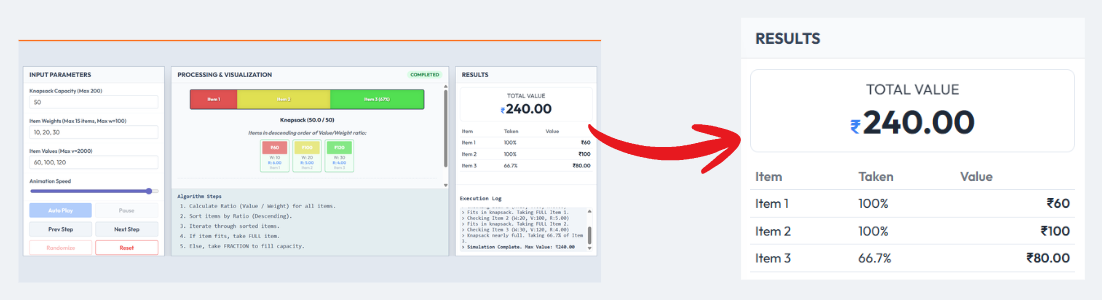
- The Auto Play button is disabled to indicate the completion of the experiment.
- The final state of the knapsack remains visible for verification.
- Click the Reset button to clear all inputs and restart the experiment.